The AI Quest - Explore. Compare. Master the AI Era.
Latest Blogs

Explore. Compare. Master the AI Era.
Explore. Compare. Master the AI Era.
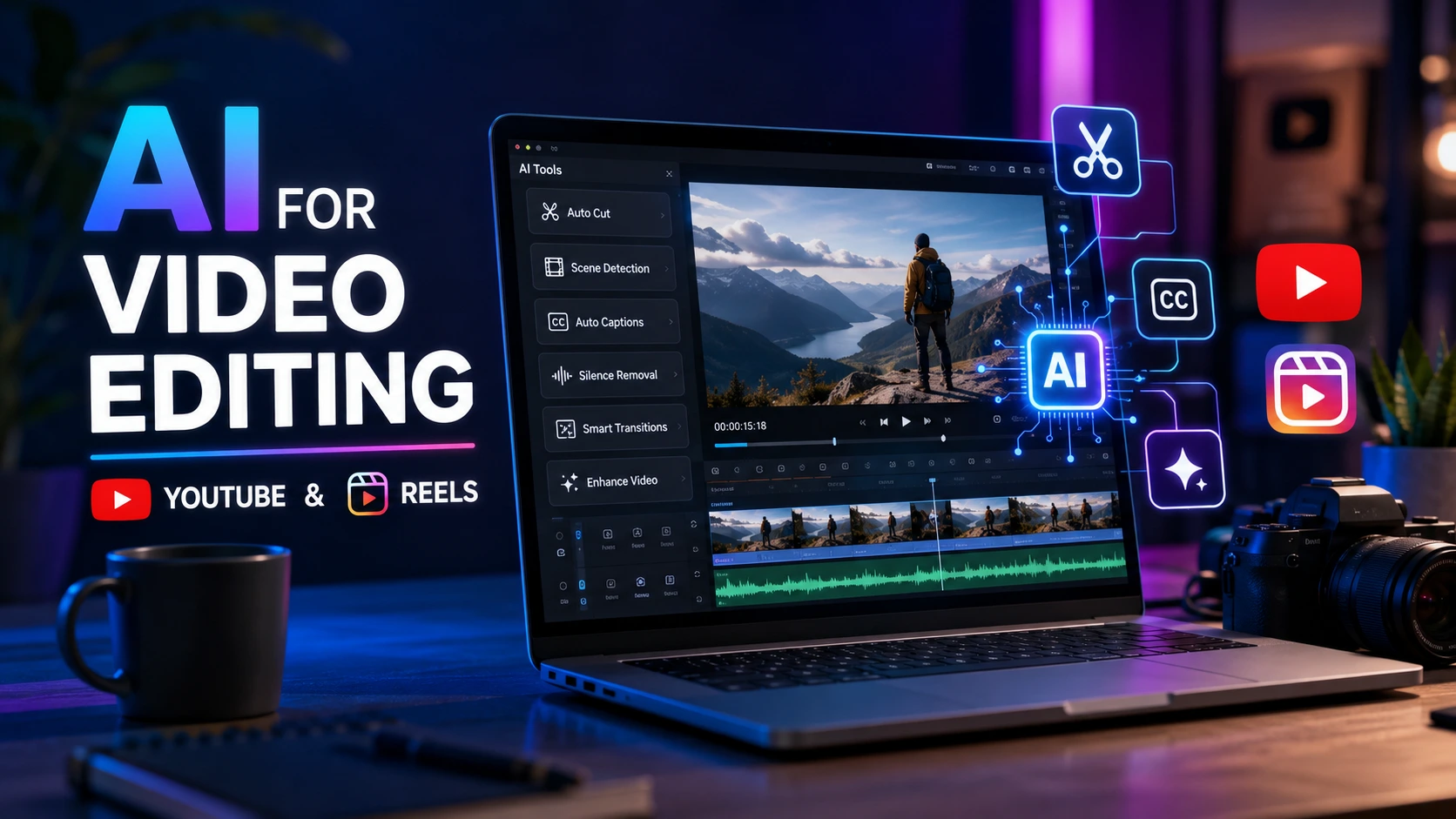
When you hear the words video editing, you probably think of hours of hard work. Sometimes, you need to cut unwanted parts from a video. Other times, you have to add subtitles line by line.
Finding the right footage, cleaning up the audio, and preparing videos for different social media platforms can also take a lot of time.
But AI tools have made video editing much easier. With their help, you can complete many tasks in just a few minutes that previously took hours.
My team and I tested more than 15 AI video editing tools over 30 days. During this time, we created YouTube tutorials, Instagram Reels, and YouTube Shorts. In our testing, we reduced editing time by around 60%.
However, AI does not get everything right on its own. To create better videos, you still need to give the right prompts and review the final video yourself.
In this guide, we will explain what AI video editing is, how to edit videos with AI, and which AI tools can help you create videos for YouTube and Instagram.
AI video editing means using Artificial Intelligence to make video editing easier and faster.
Normally, you have to do several tasks yourself while editing a video. These include removing unwanted parts, adding subtitles, cleaning up audio, and finding the right footage.
AI tools can do many of these tasks automatically.
For example, if you pause frequently while speaking in a video, AI can detect and remove those silent parts. It can also create subtitles by listening to your voice and turn long YouTube videos into shorter Reels and Shorts.
This means AI can help you save a lot of time during video editing.
If you run a YouTube channel or regularly create Instagram Reels, you know how much time it takes to make videos.
Creating a single video involves several tasks:
All these tasks can take a lot of time. AI video editors make them easier.
During our testing, we used text-based editing to turn a 20-minute raw video into a 10-minute video. Earlier, this task took around 2 hours. With AI, we completed it in about 15 minutes.
AI video editing tools offer several useful features for video creators.
With this feature, AI converts the spoken words in your video into text. You can then edit the video by making changes to the text.
For example, suppose you said the wrong line in a video or used filler words like “um” and “uh”. You can remove these words from the transcript, and the related video parts will also be removed automatically.
While recording a video, we often pause between sentences. This increases the amount of empty time in the video.
AI can detect these silent parts. With just one click, you can remove long pauses and make your video flow better.
Adding subtitles manually can take a lot of time. AI tools listen to your voice and create subtitles automatically.
Some tools also offer animated captions that highlight words one by one as you speak. These are especially useful for Instagram Reels and YouTube Shorts.
Watching the same face throughout a video can make viewers lose interest. That is why creators add other images and video clips between scenes. These are called B-roll footage.
AI tools can understand your script and add related images or short video clips.
For example, if you are talking about a busy coffee shop, AI can find related footage and add it to your video.
YouTube videos are usually created in the 16:9 format, while Instagram Reels and YouTube Shorts use the 9:16 format.
When changing the video size, the speaker’s face can sometimes move out of the frame.
With AI Face Tracking, the video frame adjusts automatically. This keeps the speaker in the centre of the screen.
To create a good YouTube video, you need clear audio and a smooth flow.
During our testing, we followed a few simple steps.
Step 1: Upload Your Raw Video
First, upload your raw video to Descript or Adobe Premiere Pro. Then, generate a transcript of the video.
Step 2: Remove Unnecessary Words and Silence
Use the Remove Filler Words feature to remove words like “um” and “uh”. If you make a mistake while speaking, you can delete that part from the text, and the related video section will also be removed.
One important tip: Do not remove every pause. Keep small, natural gaps between words so your voice does not sound robotic.
Step 3: Clean Up the Audio
If your video has background sounds from a fan, wind, or the room, you can use Adobe Podcast AI or Descript Studio Sound.
These tools help reduce background noise and make your voice clearer.
Step 4: Add B-Roll and Other Footage
Add relevant images and short video clips wherever needed to make your video more interesting. You can use tools like VEED.io for this.
Step 5: Prepare YouTube Titles and Chapters
Once your video is edited, you can put its transcript into ChatGPT or Claude to create a YouTube Title, Description, and Timestamps.
This also makes it easier to prepare your video for uploading.
If you use the same video on YouTube, Instagram, and other platforms, AI tools can save you a lot of time.
Tools like Opus Clip and Vizard are useful for this.
Step 1: Paste your YouTube video link into Opus Clip.
Step 2: AI watches the video and selects its most useful and interesting parts.
Step 3: Convert the selected clips into the 9:16 vertical format.
Step 4: Add clear and easy-to-read subtitles to the video.
Step 5: Before exporting the video, check whether the beginning and ending are correct. Also, make sure there are no spelling mistakes in names or other words in the subtitles.
This way, you can create several short Reels and Shorts from one long YouTube video.
We tested different AI video editing tools. Here is a comparison of their main features and limitations.
| AI Tool | Best For | Key Feature | Limitation |
|---|---|---|---|
| CapCut | Reels and Shorts | Animated subtitles and effects | May require more RAM on a computer |
| Descript | YouTube and Podcasts | Edit videos using text | Takes some time to learn |
| Opus Clip | Reels and Shorts | Turns long videos into short clips | Offers less control over the timeline |
| VEED.io | Social media videos | Easy editing and auto subtitles | Can be slow with large files |
| Adobe Premiere Pro | Professional video editing | Advanced editing and audio tools | Expensive and difficult to learn |
The prices and free plan limits of these tools may change over time. So, check their latest plans before buying a subscription.
After using different tools for 30 days, we learned three important things.
1. CapCut for Reels and Shorts: CapCut worked well for creating short videos. Its subtitles and video effects help speed up the editing process.
2. Descript for YouTube Videos: If you record videos in front of a camera or create interviews, Descript can save a lot of time. It makes video editing easy by allowing you to remove parts through text.
3. Do Not Use AI B-Roll Without Checking It: Sometimes, AI adds the wrong image or video clip based on your script. So, it is important to watch the final video yourself.
Keep these points in mind while editing videos with AI tools.
1. Can I use AI for free to edit YouTube videos?
Yes. Free versions of tools like CapCut, Descript, and VEED offer features such as Auto Subtitles and Silence Removal. However, some tools add their watermark to videos created using the free plan.
2. Can YouTube channels monetise videos edited with AI?
Yes, videos edited with AI can also be monetised. However, your videos should include original content and useful information for viewers. Simply creating a video with AI does not guarantee monetisation.
3. What Is Prompt-Based Video Editing?
In this type of editing, you give written instructions instead of making repeated cuts with your mouse.
For example, you can type “Remove the background noise” or “Zoom in during the first 5 seconds”. AI edits the video based on your instructions.
The purpose of AI video editing tools is not to replace video editors but to make their work easier.
If you are just starting with video editing, try using AI to create subtitles for your next video or remove unnecessary pauses.
This will help you understand how AI can save your time. You can use that extra time to think of new video ideas and improve your content.