
How to Use Notion AI for Project Management (Step-by-Step)

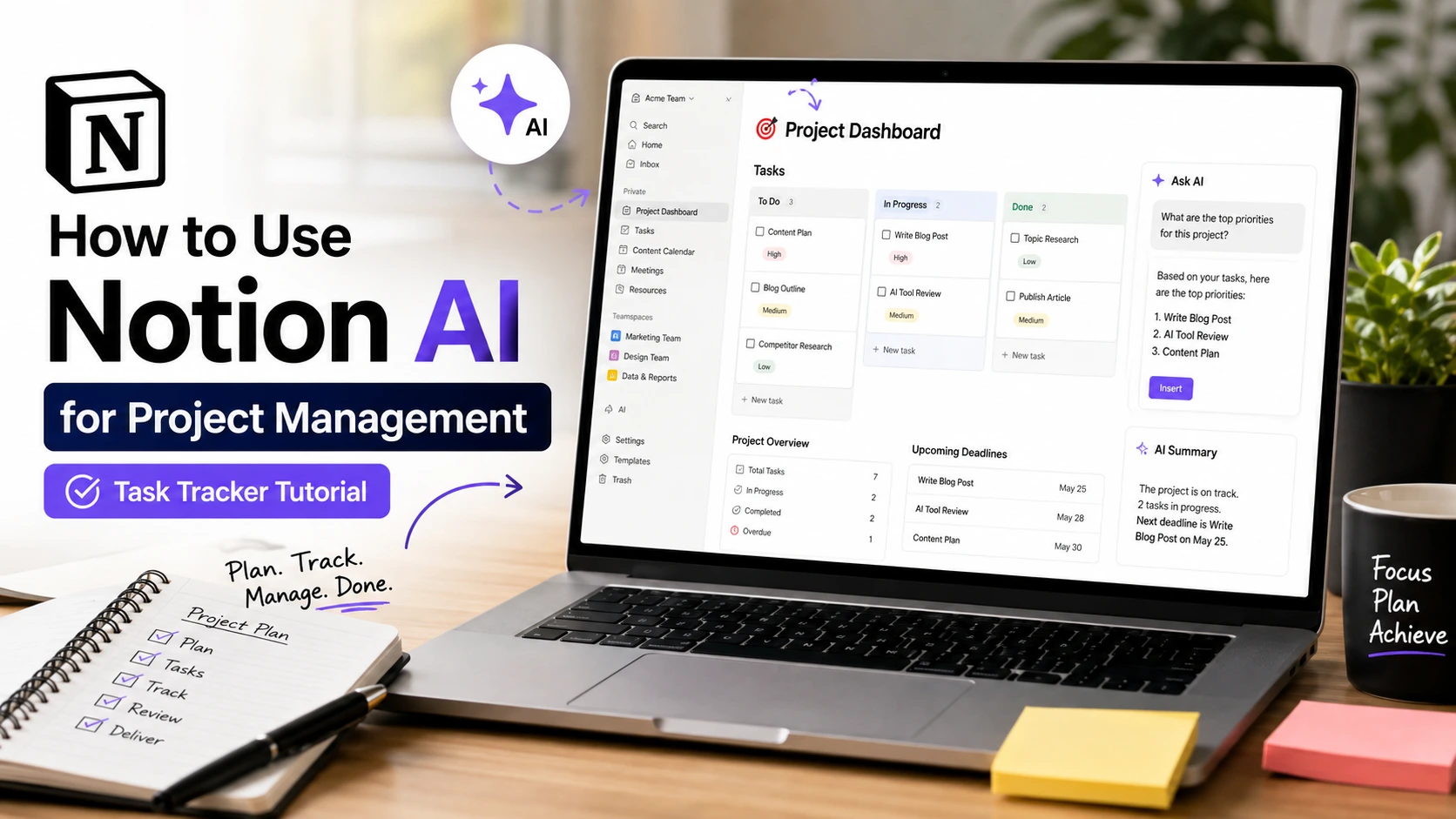
How to Use Notion AI for Project Management: I am Deepak Gupta Founder of The AI Quest. In this guide, I will show you how to use Notion AI for project management based on our real team testing.
We used Notion AI for several weeks to manage our internal content, track writing projects, organize client deliverables, and plan weekly tasks.
[Notion Workspace] ──> [Task Database] ──> [Notion AI Autofill] ──> [Instant Summaries & Subtasks]
What is Notion AI?
Notion AI is an integrated assistant built directly inside Notion. It lets you write content, summarize notes, extract action items, and automatically fill database properties using artificial intelligence without leaving your workspace.
Notion AI is a smart writing and database assistant inside the official Notion workspace.
It does not sit in a separate browser tab like ChatGPT. It works right where you write your notes and organize your task boards.
You can trigger it using the /ai command or spacebar on any blank line. It can edit text, generate subtasks, summarize pages, and auto-populate database columns.
Can You Use Notion AI for Project Management?
Yes, you can use Notion AI for project management. By combining custom databases with AI autofill properties, teams can automatically break down projects, summarize meeting notes, auto-assign priorities, and generate weekly status reports inside custom task boards.
Yes, you definitely can. But you need to understand how it works first.
Notion AI is not an automatic project manager that does all the work for you. It will not magically finish your tasks.
Instead, it acts as a helpful copilot inside your task databases. It takes care of repetitive typing, summarizes long documents, and extracts action items from notes.
Why We Tested It
At The AI Quest, we manage multiple writing projects, blog schedules, and client reviews every week.
We used to waste a lot of time moving information manually. We spent hours writing task summaries, extracting action items from video calls, and setting up subtasks.
We decided to put Notion AI through a hard test on real work for four weeks to see if it could save us real time.
Our Experience
We tested Notion AI on our primary content production pipeline.
We tracked around 25 blog articles, 10 social media campaigns, and weekly team catch-ups.
Here is what we noticed right away: Notion AI shines when working inside databases. Setting up AI Autofill properties saved us nearly 30 minutes every day.
However, if your underlying database is messy, Notion AI will generate messy answers. Good structure comes first.
Features We Used
During our testing, we focused on four main Notion AI features for project management:
- AI Autofill in Databases: Automatically fills custom columns like task summaries, key takeaways, or translation tags.
- Spacebar Command: Brings up the AI prompt box anywhere on a page to draft content or brainstorm steps.
- Action Item Extraction: Scans long meeting notes and creates a list of open tasks instantly.
- AI Page Summary: Writes a quick 3-sentence summary at the top of long project briefs.
Ratings & Reviews
Notion: notes, tasks, AI4.6
3.72L reviews
This app is great for organization and just whatever you need written down. My only complaint is the gap in the lines when you start writing below writing, it doesn’t matter but I wish I could change it like I can on computer, and the fact you can’t put a ‘ at the end of things or when you continue typing it deletes the word, I need to write names with ‘s at the end.. I’d like to add on, the AI features absolutely disgust me. I appreciate they don’t pop up unwarranted, but it’s still upsetting..
It’s a great app. My only suggestion is please add a zoom in or zoom out option for MOBILE. It’s very convenient to use on pc that’s fs but when I’m on my phone it gets frustrating to use, u can’t see all ur data in a single frame, I wish you guys could change that. Sliding is not enough I wanna see it in a single frame. Hope this review reaches the right people 🙏🙏🙏
It has amazing potential but the free version is just too limited. For example I can’t even add one “to do” to my to do list because I don’t have any blocks left. I’ve added 3 items to a selling tracker, and a few items to a health tracker. And… That’s the capacity of the free version apparently which sucks and I can’t really test it’s full functionality. I use it for work and pay (even tho it also has limits? Weird). But my work and private life are separate and I don’t want 2 subs.
How to Use Notion AI for Project Management (Step-by-Step)
To use Notion AI for project management, create a master task database, add custom properties, turn on AI Autofill for summaries or action items, and use AI prompts to break big projects into daily subtasks step-by-step.
1
Create Your Master Project Database
Set up the foundation in Notion
1.Create Your Master Project Database:Set up the foundation in Notion.
Open a clean page in Notion. Type /database and select Database – Full page. Name it “Master Project Tracker”. Add standard properties like Status, Due Date, Assignee, and Priority.
2
Add AI Autofill Properties
Automate database columns with AI
2.Add AI Autofill Properties:Automate database columns with AI.
Click the + button to add a new property column. Scroll down to AI Autofill. Choose AI Summary or Custom AI Prompt. For example, set a custom prompt to write: “List 3 clear action items based on this page.”
3
Write Detailed Project Briefs
Feed good context into the page body
3.Write Detailed Project Briefs:Feed good context into the page body.
Inside each project page, add your raw notes, goals, or meeting transcript. The clearer your writing, the better results Notion AI gives you.
4
Generate Subtasks with AI Prompts
Break big tasks into small steps
4.Generate Subtasks with AI Prompts:Break big tasks into small steps.
Press Spacebar on a new line inside your project page. Type: “Break this project into 5 sequential subtasks with clear deadlines.” Highlight the output and drag it into your task database.
5
Create an AI Weekly Summary View
Keep stakeholders updated effortlessly
5.Create an AI Weekly Summary View:Keep stakeholders updated effortlessly.
Add a new formula or AI property column called “Status Update”. Set the prompt to: “Summarize current project progress in two clear sentences based on page updates.”
How to Create an AI Task Tracker
Creating an AI Task Tracker in Notion takes less than 10 minutes.
Follow this simple layout:
- Create a table view with columns: Task Name, Status, Owner, Due Date, and AI Summary.
- Set the AI Summary property to update automatically whenever page content changes.
- Open any task page, paste your project brief, and let the AI fill out the summary column in your table view.
This gives you a bird’s-eye view of all ongoing work without opening every page manually.
Best Notion AI Prompts for Project Management
Here are the exact prompts we used during our testing:
- For Project Planning: “Act as a project manager. Break down this project page into a structured step-by-step checklist ordered by priority.”
- For Action Items: “Read these meeting notes and extract all action items. Group them by team member.”
- For Status Updates: “Write a brief 3-sentence project status update suitable for a weekly client email.”
- For Risk Analysis: “Review this project proposal and list 3 potential risks or bottlenecks we might face.”
How We Organize Daily Tasks
We use a clean Kanban board view for daily task tracking.
- To Do: Tasks generated by AI from weekly planning notes.
- In Progress: Current active tasks for the day.
- In Review: Completed drafts waiting for editorial check.
- Done: Completed tasks.
Notion AI helps us keep task descriptions concise so our board remains clean and readable on mobile screens.
Weekly Planning
Every Monday, we open our Weekly Planning page.
We paste raw goal ideas for the week and run Notion AI with this command: “Group these goals into Monday-Friday daily action lists.”
It saves us 15 to 20 minutes of planning time every single week.
Project Dashboard
Our main project dashboard combines three key views:
- Active Sprints (Board View): Shows current tasks grouped by status.
- Timeline View: Displays project deadlines across the month.
- AI Project Highlights (Table View): Shows AI-generated summary columns for high-level management updates.
Meeting Notes & AI Summaries
Meeting notes used to be a mess. Now, we record audio or paste transcripts directly onto a page.
We then click AI Actions -> Summarize or Extract Action Items.
Notion AI instantly gives us bullet points of who needs to do what by when.
Content Calendar
For blog posts and social media planning, Notion AI acts as a brainstorming buddy.
We use it to generate headline variations, outline article sections, and write meta descriptions right inside our database properties.
Team Collaboration
When working with remote team members, clear handoffs matter.
We use Notion AI to write quick handoff notes at the end of a page. A simple prompt like “Write a 2-sentence handoff summary for the editor” helps team members pick up work immediately without extra video calls.
Template Example
Here is a simple structure you can copy into your workspace:
[Master Project Database]
│
├── 📋 Board View (Grouped by Status)
├── 📅 Calendar View (By Due Date)
└── 🤖 AI Overview View (Includes AI Summary & AI Action Items properties)
Common Mistakes to Avoid
- Expecting AI to manage everything: Notion AI is a helper, not a human manager. You still need to review dates and assignments.
- Writing vague project briefs: If your input text is vague, AI summaries will be useless.
- Overcomplicating databases: Do not add 10 different AI properties to one database. It slows down page loading.
Tips from Our Testing
- Use short, direct prompts inside database properties.
- Pair Notion AI with custom database templates for consistent results.
- Turn on manual AI triggers if you do not want pages updating automatically on every edit.
Pros and Cons
| Pros | Cons |
|---|---|
| Built directly inside your workspace | Costs $8–$10 per member per month |
| Saves time on task summaries | Requires clear human context to work well |
| AI Autofill updates properties automatically | Can generate repetitive text if prompts are vague |
| Great for extracting action items from notes | No automatic time-tracking or built-in gantt dependencies |
Pricing
Notion AI is available as an add-on feature for Notion workspaces.
- Notion Free Plan: $0/month (Includes limited trial AI responses).
- Notion AI Add-on: $8 per member/month (billed annually) or $10 per member/month (billed monthly).
Who Should Use It?
- Freelancers & Writers: Great for organizing client work and content schedules.
- Small Agencies: Ideal for keeping client task boards updated without manual effort.
- Startup Teams: Perfect for teams already using Notion who want faster documentation and meeting notes.
Who Should Avoid It?
- Large Construction or Enterprise Teams: If you need complex Gantt chart dependencies or resource allocation, dedicated tools like Jira or ClickUp are better.
- Teams on a Tight Budget: If you don’t want an extra monthly fee per user, stick to standard free database properties.
Tool Comparisons
Notion AI vs Trello
Trello is simpler for basic kanban boards, but Notion AI offers vastly superior document writing, page summaries, and custom database property automation.
Notion AI vs ClickUp
ClickUp offers stronger built-in project management tools like native time tracking and complex dependency tracking. However, Notion AI feels much cleaner and more natural for document-heavy project planning.
Notion AI vs Asana
Asana excels at corporate team workflows and enterprise tracking. Notion AI wins for flexibility, note-taking, and content-first project management.
Comparison Tables
Feature Comparison Matrix
| Feature | Notion AI | Trello | ClickUp | Asana |
|---|---|---|---|---|
| Doc Writing & Notes | Excellent | Basic | Good | Basic |
| AI Property Autofill | Yes | No | Partial | Partial |
| Kanban Boards | Yes | Excellent | Yes | Yes |
| Built-in Time Tracking | No (Needs integration) | No | Yes | Yes |
| Custom Workflows | High Flexibility | Low | High Complexity | Medium |
Pros & Cons Table
| Category | Strengths | Limitations |
|---|---|---|
| User Experience | Clean interface, zero context-switching | Requires learning curve for database setups |
| Automation | AI Autofill handles tedious summary work | No automatic external trigger automations out of the box |
| Value for Money | Replaces separate AI writing and summary tools | Monthly fee adds up for large teams |
Pricing Table
| Plan | Price (Annual) | Price (Monthly) | AI Features Included |
|---|---|---|---|
| Free Workspace | $0 | $0 | Limited AI Trial Prompts |
| Plus Plan + AI | $18 / user / mo | $22 / user / mo | Unlimited AI + Unlimited File Uploads |
| Business Plan + AI | $23 / user / mo | $28 / user / mo | Advanced Permissions + SAML SSO + AI |
Frequently Asked Questions (FAQ)
Is Notion AI free to use for project management?
Notion offers a small free trial with limited AI responses. For regular team project management, Notion AI costs $8 per member per month on an annual plan.
Can Notion AI replace tools like ClickUp or Jira?
For content teams, freelancers, and small agencies, yes. However, for large software engineering teams needing complex sprint dependencies, dedicated tools like Jira or ClickUp remain superior.
How does AI Autofill work in Notion databases?
AI Autofill is a custom database column property. You provide a prompt, such as “Summarize page in 2 sentences”, and Notion AI reads the page content to populate that cell automatically.
Is my company data used to train AI models?
According to official workspace security policies, your project data is encrypted and is not used to train AI models without explicit consent.
What is the best way to extract action items from meeting notes in Notion AI?
Paste your notes into a Notion page, press Spacebar or type /ai, and select Extract action items. Notion AI will create a checklist of tasks automatically.
Key Takeaways
- Notion AI shines in databases: AI Autofill properties save significant time on task summaries and status updates.
- Good inputs equal good outputs: Write clear project briefs to get accurate AI subtasks and updates.
- Great for small-to-medium teams: Perfect for content teams, freelancers, and startups already using Notion.
- Final Rating: 8.5 / 10 for team project management and productivity.