
Canva AI Review (2026): Hands-On Testing, Features, Pricing, Pros & Cons
Is Canva AI worth using? Explore its AI design, photo editing, video and writing features, along with its pros, limitations and use cases.

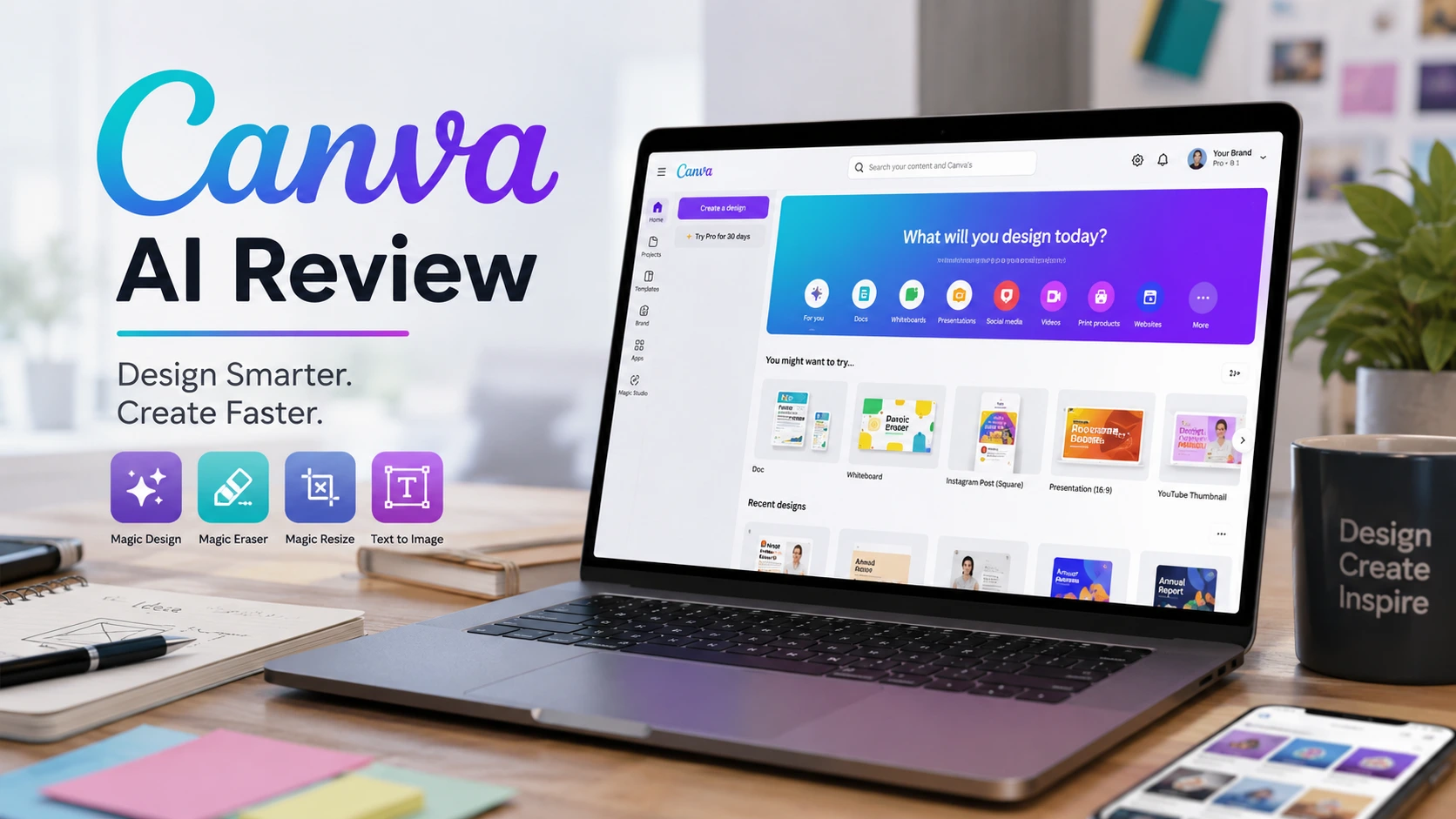
If you don’t know graphic design but still need to create posters, thumbnails, presentations, or social media posts, Canva AI can be quite useful. I tested several of its AI features. I especially liked removing backgrounds, erasing unwanted objects, and creating designs quickly.
However, AI-generated images sometimes contain glitches in text or design elements. So while Canva AI definitely makes work easier and faster, relying on it entirely without reviewing the output is not a good idea.
What is Canva AI?
I still remember the older version of Canva. Back then, using Canva meant picking a nice template, adding your photo, changing the text, and finishing your design. That was its biggest strength- even without in-depth design knowledge, you could get the job done.
Now, Canva has advanced significantly with AI. Inside Canva, you get multiple AI features for generating images, editing photos, creating presentations, writing text, and editing videos. This means Canva is no longer just a tool for picking templates and making designs. You describe what you need, and the AI handles the initial groundwork. That is what I liked most about Canva AI.
What Can You Do with Canva AI?
Canva AI has so many features that it can feel a bit confusing at first. However, a few features stand out for everyday work.
Magic Design
Suppose you need to create a presentation on a topic. Previously, you had to decide the design for every single slide yourself. With Magic Design, you enter your topic, and Canva generates several design options based on your prompt.
When I tried it, the initial setup felt very easy. That said, I don’t finalize the AI-generated design directly. I still need to adjust the text, photos, and layout to fit my requirements. Even so, it saves a lot of time at the start.
Generating Images with AI
You can also generate images using AI in Canva. You type what you need, and the AI attempts to create an image accordingly. This can be handy for blog featured images, social media posts, or visualizing an idea.
The biggest issue I encountered was when I needed specific text inside the image. The AI often misspells words. In photos of people, hands, fingers, or faces can also look odd at times. Because of this, rather than using the first generated image right away, I prefer checking alternative options.
Background Remover
If you use Canva, Background Remover can be very useful. When you need to remove a photo’s background, there is no need to open separate photo editing software. Just upload the photo and remove the background.
It works quite well for standard photos. For images with loose hair or fine edges, you may occasionally need to do some manual touch-ups. Still, for everyday small tasks, this feature is very convenient.
Magic Eraser
Have an unwanted object in your photo? You can try removing it with Magic Eraser. I tested it by removing various small elements, and in most cases, it worked fine.
However, it isn’t magic. If the background is complex or the object being removed is large, the results aren’t always perfect. In those situations, manual editing may still be required.
Magic Edit and Magic Grab
Both of these features come in handy when you want to modify elements already inside a photo- such as changing the color of an item or moving and reusing an object separately.
Canva’s AI helps quite a bit with these adjustments. But there is a catch: you should always inspect the AI’s changes carefully. Sometimes the edit looks right, but another part of the photo gets unintentionally altered.
Magic Write
Canva’s AI isn’t limited to images and design. With Magic Write, you can generate headlines, captions, and short copy. It works well if you need quick social media captions or basic ideas.
However, I wouldn’t recommend using it to write full blog posts. AI-written text can often feel repetitive and somewhat artificial. For me, it serves better as an idea generator rather than a replacement for a writer.
Creating Videos with Canva AI
Canva now offers useful features for video creation as well. Its timeline makes producing Reels and short social media clips straightforward. Features like Beat Sync help align video clips to the rhythm of the music.
If you produce daily short videos for Instagram or YouTube Shorts, it can simplify the process. But if you do professional video editing and need precise control over every cut, an advanced video editor will still be necessary.
What I Liked About Canva AI
The best part is its simplicity. You don’t need to be a design expert to work in Canva. Even a simple post comes together quickly.
Another advantage is having multiple tasks handled in one place:
- Edit photos in Canva
- Remove backgrounds in Canva
- Make thumbnails in Canva
- Build presentations in Canva
- Edit videos in Canva
This cuts down the hassle of constantly switching between different applications.
What I Didn’t Like About Canva AI
Now for its limitations.
First is AI-generated imagery. The results aren’t consistently good. Sometimes faces look off, hands appear distorted, or text rendered inside the image is garbled.
The second issue is precision editing. When I need to make fine, detailed edits to a specific section of a photo, Canva doesn’t provide the level of granular control available in professional photo editing software.
Another important point: an AI-generated design should rarely be treated as the final draft. The AI often just provides the starting framework, after which you need to refine it according to your needs.
Real Users Review: Elaina Coeyman (Kitti)
Great, easy to use app for editing, making collages, flyers, digital posters, info graphs ect. Plenty of free materials, themes and templates to use and a great, free option instead of using AI for a subpar result! So many options and customizations, but simple and easy enough for someone who just wants to slap something together quick to use and be happy with the results.
How is Canva AI on Mobile?
The Canva mobile app is practical for anyone who wants to design directly from a phone. I tested making posts, editing photos, and doing other quick tasks on mobile. General tasks run smoothly.
However, when fine-tuning is required, the smaller screen becomes limiting. Adjusting small details with a touchscreen feels noticeably harder than using a laptop. Because of this, my approach is to handle quick, simple edits on mobile and save detailed design work for the laptop.
Who is Canva AI Best For?
In my view, Canva AI is especially suited for:
- Bloggers: For featured images, social media posts, and basic infographics.
- YouTubers: For thumbnails and social media creatives.
- Students: For presentations and academic projects.
- Small Businesses: For promotional posts, banners, and marketing creatives.
- Social Media Managers: For producing daily creatives quickly.
- Beginner Designers: For brainstorming design concepts and rough layouts.
If you are a professional designer who requires full control over every pixel, Canva alone won’t be enough.
Canva Free vs. Pro
Canva’s free plan is fine to get started with. If you only create the occasional post, card, or small design each month, the free plan may cover your needs.
However, if you rely on Canva daily and need access to premium designs, stock photos, more cloud storage, and advanced AI features, the Pro plan is worth considering. My advice is not to upgrade solely for the AI features. First evaluate how frequently you use Canva throughout the month. If your usage is high, a paid subscription can deliver good value.
Can Canva AI Replace Photoshop?
In my opinion, not entirely. Both tools serve different workflows.
Canva’s advantage lies in speed- you can finish a complete design in very little time. Tools like Photoshop provide deeper control and detailed precision editing. When I need a quick blog thumbnail or a social post, I find Canva far more convenient. But for detailed retouching, professional editing software remains essential. Therefore, Canva should not be considered a direct substitute for Photoshop.
My Final Verdict on Canva AI
After using Canva AI, its biggest strength isn’t generating photos from scratch—it’s simplifying your workflow. Even without formal design training, you can build a clean poster or thumbnail. Removing a background takes just a couple of clicks. Starting a presentation is faster because the AI lays down the first draft, and basic video tools are right there in the same dashboard.
Still, you shouldn’t rely on the AI blindly. I always review AI-generated images, layouts, and copy before publishing them, because AI does make mistakes—and even a small error can ruin an otherwise good design.
Should You Use Canva AI?
If your work involves blogging, YouTube, social media, studies, or running a small business, Canva AI can be a very helpful tool. If you only design occasionally, stick with the free tier first. If Canva is part of your daily routine, upgrading to a paid tier like Pro makes sense.
To me, Canva AI means getting designs ready quickly with minimal friction. It won’t solve every design problem, but for day-to-day graphic needs, it saves a significant amount of time.
FAQs
Is Canva AI free?
Canva offers a free plan that includes access to select AI features. However, available features and usage limits vary depending on the plan.
Can you generate photos with Canva AI?
Yes. You can generate images using text prompts, though the quality and consistency of the results can vary.
Can you make videos with Canva AI?
Yes. Canva provides tools to create and edit videos, along with several AI-assisted features.
Can Canva AI replace Photoshop?
Not completely. Canva excels at quick and accessible design work. For advanced, pixel-level photo editing, professional tools are still better suited.
Does Canva AI support Hindi?
Yes. Canva supports text in multiple languages, including Hindi. It is always recommended to proofread AI-generated text for spelling and grammatical accuracy before publishing.