How to Create a Website Using AI in 10 Minutes

A few years ago, setting up a website meant two things: spending weeks figuring out HTML, CSS, and DNS settings, or paying a web developer thousands of dollars.
Today, that entry barrier is completely gone.
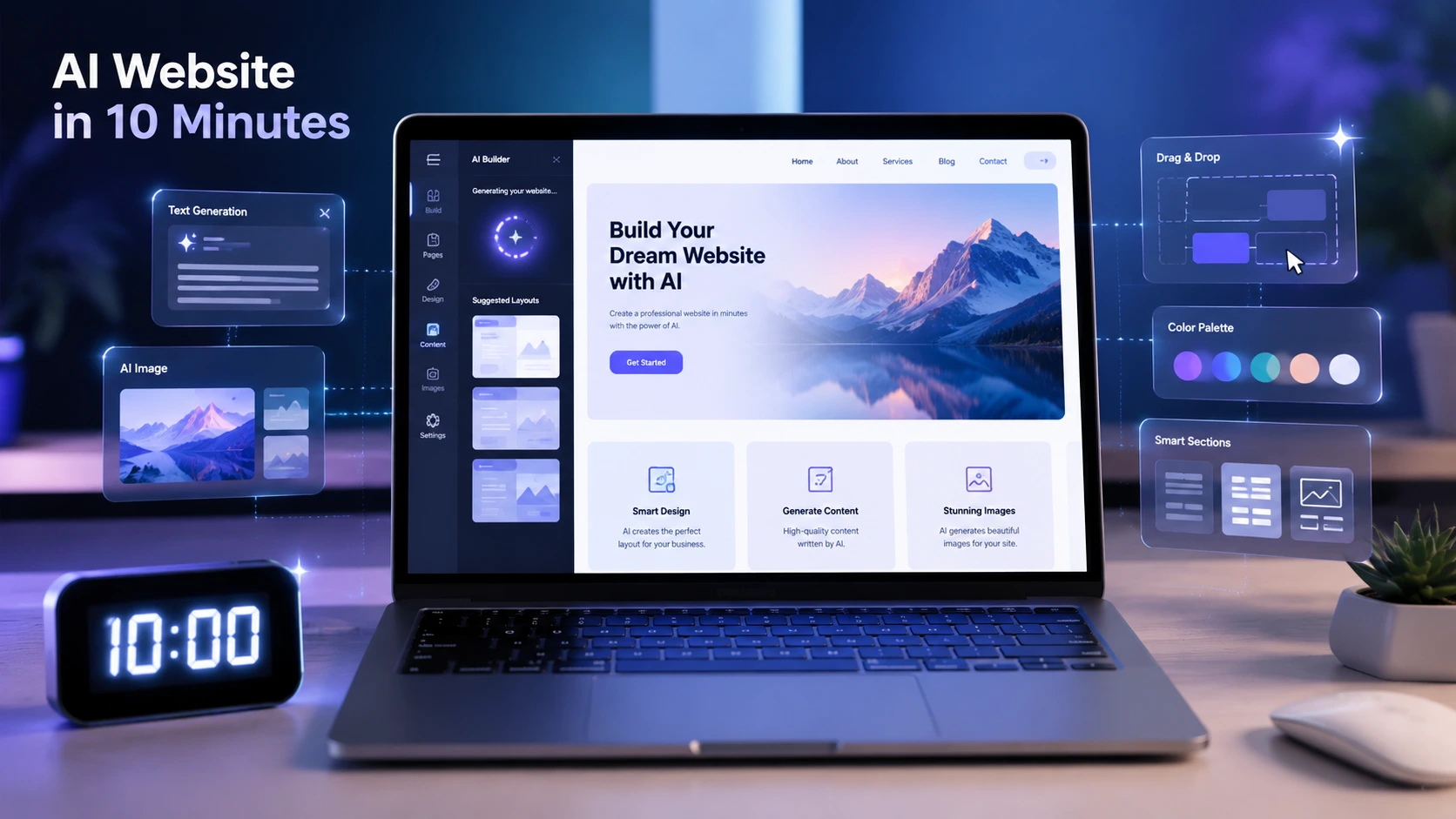
Whether you need a portfolio, a local business site, a personal blog, or an event landing page, you can build a clean, functional website in under 10 minutes without touching a single line of code.
I spent the past week testing modern free AI website builders. I built mock sites for coffee shops, freelance consulting practices, local landscaping services, and photography portfolios. In our testing, we found that while AI will not replace human strategy, it gets you 80% across the finish line almost instantly.
In this guide, I will walk you through how to create a website using AI in 10 minutes free. We will cover the exact prompts to use, how to customize AI layouts without breaking your design, and which free builders give you real value without trapping you behind hidden paywalls.
Our Hands-On Testing Experience
To verify whether building a site in 10 minutes was realistic, our team set up a timed test environment. We built three distinct test sites using different free AI builders:
- A freelance graphic designer portfolio
- A local bakery landing page with a menu and contact form
- A single-product marketing landing page
Timed Test Breakdown
| Task Step | Average Time | Key Focus |
| 1. Account Setup & Prompt Entry | 1 min 15 sec | Choosing builder & entering niche details |
| 2. AI Page Generation | 0 min 45 sec | AI generates layout, copy, & layout grid |
| 3. Copy & Color Edits | 3 min 20 sec | Tweaking headline text & brand palette |
| 4. Image Swaps & Asset Cleanup | 2 min 10 sec | Replacing stock images with custom assets |
| 5. Mobile Audit & Final Publish | 1 min 10 sec | Checking mobile view & clicking publish |
| TOTAL ELAPSED TIME | 8 min 40 sec | Live, shareable website ready |
What Impressed Us
- Generation Speed: AI engines construct page sections, navigation bars, call-to-action buttons, and footer links in under 60 seconds.
- Mobile Responsiveness: Layouts generated by top platforms naturally adjust to phone viewports without needing manual layout re-ordering.
- Contextual Copy Drafts: When given specific details, built-in AI writing assistants draft clean, relevant content rather than generic filler text.
Where AI Needs Human Help
- Generic Stock Images: AI engines frequently pull generic stock photography. Replacing these with your own authentic photos makes an immediate difference in trust.
- Complex Backend Features: If you require custom member portals or complex database integrations, simple free AI site builders are not the right fit. They work best for marketing sites, portfolios, local services, and landing pages.
10-Step Tutorial: Build Your Website in 10 Minutes
Follow this step-by-step workflow to move from a blank screen to a live website.
Step 1: Choose Your AI Website Builder
Picking the right tool depends on your goals. For visual design flexibility, platforms like Framer AI excel. For guided setups with integrated business features, Wix AI or Hostinger AI offer straightforward onboarding.
- Expected Result: An active builder dashboard ready for prompt input.
- Pro Tip: Stick with builders that offer a permanent free tier or staging URL so you can build and test without entering payment details.
- Beginner Mistake: Choosing advanced developer-focused frameworks that require domain mapping before you even see a visual layout.
Step 2: Create a Free Account
Setting up an account saves your design progress automatically in the cloud so you do not risk losing your edits mid-process.
- Expected Result: Instant access to the main design interface.
- Pro Tip: Use single sign-on (SSO) through Google or Apple to skip multi-step verification forms and save setup time.
- Beginner Mistake: Signing up for platforms that lock essential editing features behind immediate payment walls.
Step 3: Describe Your Website (The AI Prompt)
The quality of your website layout depends on your prompt input. Vague prompts create cookie-cutter sites; specific prompts produce tailored designs.
- Expected Result: The AI builder accurately understands your niche, audience, and structure requirements.
Copy-and-Paste Prompt Template:
“Create a clean, modern website for a local coffee shop named ‘Artisan Roasts’ in Austin, Texas. Include a Hero section with a bold call-to-action button, an About section highlighting organic beans, a seasonal menu list, customer reviews, and a contact section showing location hours and a map. Use a warm earth-tone color palette and inviting typography.”
- Pro Tip: Always include your business name, core service, primary city, target audience, and preferred style in your prompt.
- Beginner Mistake: Typing just two words like “coffee shop” and expecting a tailored result.
Step 4: Let the AI Generate Your Layout
Once you hit submit, the AI parses your prompt and assembles page wireframes, color palettes, font pairings, and initial text blocks.
- Expected Result: A structured web page generated in 30 to 60 seconds.
- Pro Tip: If the initial layout feels off, hit the “Re-generate” or “Try New Style” button once before manually moving elements around.
- Beginner Mistake: Discarding a strong layout just because you dislike the initial color palette—you can change colors site-wide with one click later.
Step 5: Customize Colors and Brand Fonts
Brand consistency builds trust with visitors. Applying a clean, unified color palette ensures your site looks professional.
Quick Design System Checklist:
- Primary Accent Color: Used for main call-to-action buttons and key highlights.
- Secondary Background: Used for section dividers and card containers.
- Body Text Color: Dark gray or off-black for high contrast on light backgrounds.
- Font Pairing: One clean header font paired with a readable body font.
- Pro Tip: Use built-in theme presets to adjust accent colors and typography across every section simultaneously.
- Beginner Mistake: Using five or six bright colors that clash and distract readers from your content.
Step 6: Edit Your Headline and Section Copy
AI provides a solid starting draft, but you need to refine details, add your exact service list, and ensure accurate contact information.
- Expected Result: Persuasive, accurate text tailored to your business.
- Pro Tip: Highlight any section of text and use built-in AI inline writers to shorten, rephrase, or adapt sentences for impact.
- Beginner Mistake: Leaving default text like “Industry Leading Solutions” live on your public site.
Step 7: Swap Out Placeholder Images
Real photography builds instant credibility. Replacing standard stock imagery with custom photos or relevant visual assets makes your site unique.
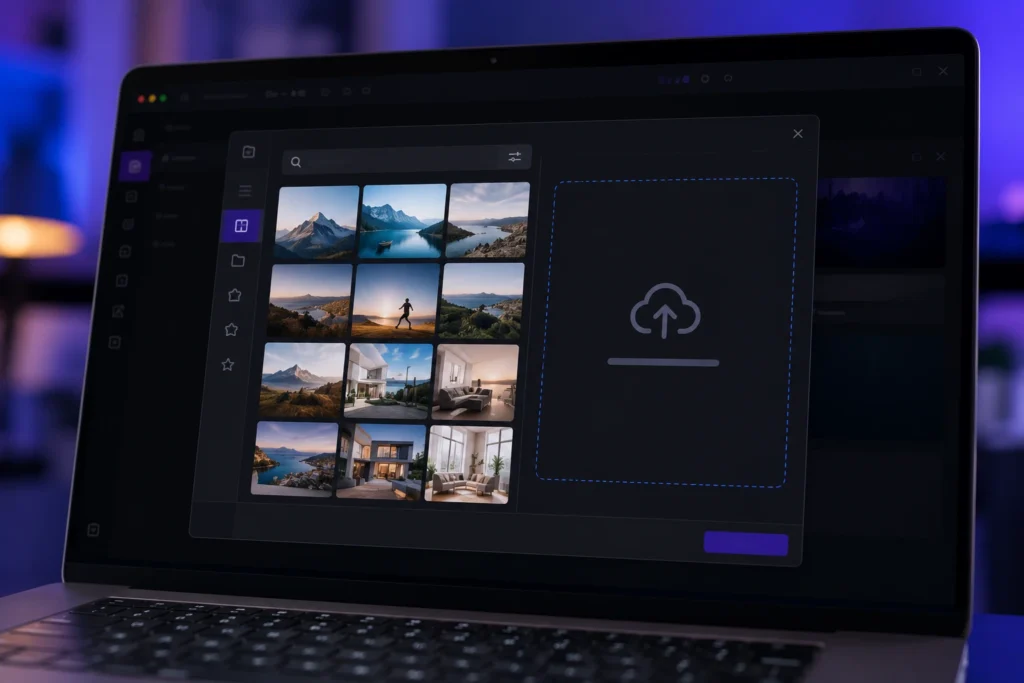
- Pro Tip: Use royalty-free media libraries like Unsplash or Pexels integrated directly inside the builder if you lack custom photos.
- Beginner Mistake: Uploading uncompressed 15MB camera photos that slow down your web loading speed. Keep image files under 500KB.
Step 8: Check and Optimize the Mobile View
Over 55% of global web traffic originates from mobile devices. A layout that breaks on smartphones will cost you clients immediately.
Mobile View Checklist:
- Navigation hamburger menu opens and closes cleanly.
- Primary call-to-action buttons stay visible without excessive scrolling.
- Text scales down smoothly without overlapping screen borders.
- Images fit screen width without causing horizontal overflow.
- Pro Tip: Switch to the mobile editor view and tweak font sizes or padding specifically for smaller screens without changing your desktop design.
- Beginner Mistake: Editing desktop views exclusively and assuming mobile layouts will auto-adjust flawlessly without verification.
Step 9: Publish Your Website
Publishing connects your site to the live web so potential customers, clients, or employers can visit your address.
- Expected Result: A live URL accessible from any browser.
- Pro Tip: Publish directly to a free staging subdomain (such as
yourname.sitebuilder.com) to check your site on a real phone before connecting a paid domain. - Beginner Mistake: Delaying launch for weeks seeking perfection instead of getting a clean, functional site online today.
Step 10: Connect a Custom Domain (Optional)
A custom domain name (yourbusiness.com) strengthens brand recognition and long-term search engine trust.
- Expected Result: A custom web address pointing directly to your new AI-built site.
- Pro Tip: Start on a free staging subdomain today, and map your custom domain when you are ready to expand your marketing.
- Beginner Mistake: Buying domain names through third-party registrars before checking whether your chosen builder offers simple DNS connection options.
Comparing the Best Free AI Website Builders
We evaluated leading AI platforms based on usability, free tier features, output quality, and mobile adaptation.
| Builder Platform | Ease of Use | Free Plan Tier | AI Output Quality | Best For |
| Wix AI | High | Free Subdomain | Excellent | Small Businesses & Services |
| Framer AI | Medium | Free Staging Link | High (Modern UI) | Portfolios & Freelancers |
| Canva AI Website | Very High | Free Plan | Good (Visual Focus) | Event Pages & Personal Sites |
| Hostinger AI | High | Low-Cost / Trial Tier | Excellent | Budget-Conscious Owners |
| 10Web | Medium | Free Trial | High (WordPress Based) | Existing WordPress Users |
| Durable AI | Very High | Free Trial | Good (Rapid Setup) | Quick Local Service Sites |
1. Wix AI Builder
- Our Rating: 4.8 / 5.0
- Pros: Comprehensive site editing, reliable built-in SEO tools, strong app ecosystem.
- Cons: Free plan includes a small builder banner at the top of the page.
- Best For: Small business owners who need a complete, scalable site.
2. Framer AI
- Our Rating: 4.7 / 5.0
- Pros: Generates cutting-edge responsive layouts, smooth hover animations, fine design control.
- Cons: Slower learning curve for absolute non-tech users.
- Best For: Designers, agency creators, and tech startups seeking modern visual style.
3. Canva AI Website Generator
- Our Rating: 4.5 / 5.0
- Pros: Extremely intuitive drag-and-drop interface, massive visual media library.
- Cons: Limited traditional multi-page SEO architecture settings.
- Best For: Quick event landing pages, single-page profiles, and simple portfolios.
4. Hostinger AI Builder
- Our Rating: 4.6 / 5.0
- Pros: Fast page load speeds, guided onboarding flow, built-in AI copywriting tools.
- Cons: Connecting custom domains requires a low-cost subscription.
- Best For: Users seeking affordable hosting bundled with an automated builder.
Can You Use ChatGPT to Build a Website?
A common question beginners ask is: “Can I build a website using ChatGPT?”
The answer is yes, but with distinct differences in workflow.
ChatGPT is a text-based conversational model. It does not host web files or offer a visual drag-and-drop canvas. However, it functions as a powerful coding and copywriting assistant when paired with simple hosting environments.
| Task Capabilities | ChatGPT Capability | Standalone AI Site Builder |
| Generates Visual Layout Interface | No (Code text only) | Yes (Visual Canvas) |
| Generates HTML/CSS Code | Yes (Complete Code Blocks) | Yes (Handled automatically) |
| Writes Landing Page Copy | Yes (High Customization) | Yes (Built-in assistants) |
| Hosts Live Website Files | No | Yes (Integrated Hosting) |
| Handles Visual Drag-and-Drop | No | Yes (Visual Editors) |
How to Build a Simple Site with ChatGPT
- Request Code: Prompt ChatGPT: “Write a single-page responsive HTML and CSS code file for a modern photography portfolio including a hero section, gallery grid, and contact form.”
- Save File: Copy the generated code into a text editor (like Notepad or TextEdit) and save it as
index.html. - Publish Free: Drag and drop your
index.htmlfile into free hosting services like Netlify Drop, GitHub Pages, or Vercel.
Our Recommendation: If you do not know basic HTML, use a visual builder like Wix AI or Framer AI. Use ChatGPT alongside it to write compelling headlines, refine your service descriptions, and map out your content structure.
Frequently Asked Questions (FAQ)
Can an AI create a website for free?
Yes. Multiple website builders provide free tiers that allow you to generate layouts, draft copy, edit visual sections, and publish your site online without entering credit card details.
Which AI is best for creating a website?
Based on our testing, Wix AI provides the best all-around platform for business features and SEO options. Framer AI leads in modern layout design, and Canva is best for quick, visually focused landing pages.
Can I build an AI website without coding knowledge?
Yes. AI website builders use visual prompt wizards and visual drag-and-drop editors. You describe what you want in plain English, and the software handles page layout, spacing, and mobile responsiveness automatically.
How long does an AI-generated website take to launch?
Generating the initial layout takes less than 60 seconds. Editing text, uploading photos, checking mobile views, and publishing usually takes between 5 to 10 minutes.
Will an AI-generated website rank on Google?
Yes. Google ranks content based on helpfulness, accuracy, user experience, and overall value (EEAT criteria), regardless of whether AI was used to draft initial wireframes. Customizing your copy, adding original insights, and setting up proper meta tags will help your site rank.
Who Should (and Shouldn’t) Use AI Site Builders
While AI site generators are fast and efficient, they are tailored for specific project types.
Ideal For:
- Freelancers & Consultants: Quickly launching professional service pages or work portfolios.
- Local Business Owners: Setting up online business cards with location hours, service lists, and contact forms.
- Creators & Bloggers: Testing new project ideas or event landing pages without high setup costs.
Not Recommended For:
- Large E-Commerce Platforms: Online stores with thousands of complex inventory SKUs need custom databases (like Shopify or WooCommerce).
- Custom Web Applications: Platforms requiring user login portals, custom dashboards, or complex API integrations require bespoke development.
Final Verdict & Personal Recommendation
Launching a website no longer requires coding experience, expensive agency invoices, or weeks of frustrating technical setup.
In our testing, free AI builders generated functional, mobile-ready websites in under 10 minutes.
To get the best result:
- Provide a detailed, specific initial prompt.
- Choose a reliable builder such as Wix AI or Framer AI.
- Spend 5 minutes fine-tuning headlines, brand colors, and contact info.
Ready to start? Pick one of the free builders recommended above, input our prompt template, and put your new website online today.
Try It Yourself Today: Do not let technical confusion hold back your project. Pick one of the free AI website builders listed above, use our prompt template, and put your business or portfolio online in the next 10 minutes.